Create Add-On Vehicles for GTA 5 - Complete Modding Guide
Creating add-on vehicles for GTA 5 allows you to add entirely new cars, trucks, and bikes without replacing existing ones. This 2026 guide walks you through the entire process from 3D model to playable DLC pack.
Required Tools
| Tool | Purpose | Required? |
|---|---|---|
| OpenIV | File editing, model import/export | Yes |
| Zmodeler 3 | 3D model conversion and editing | Yes |
| 3ds Max / Blender | 3D modeling (optional for custom models) | Optional |
| Photoshop / GIMP | Texture editing (.ytd files) | Yes |
| Text Editor | Editing .meta configuration files | Yes |
DLC Folder Structure
Every add-on vehicle needs a proper DLC folder layout:
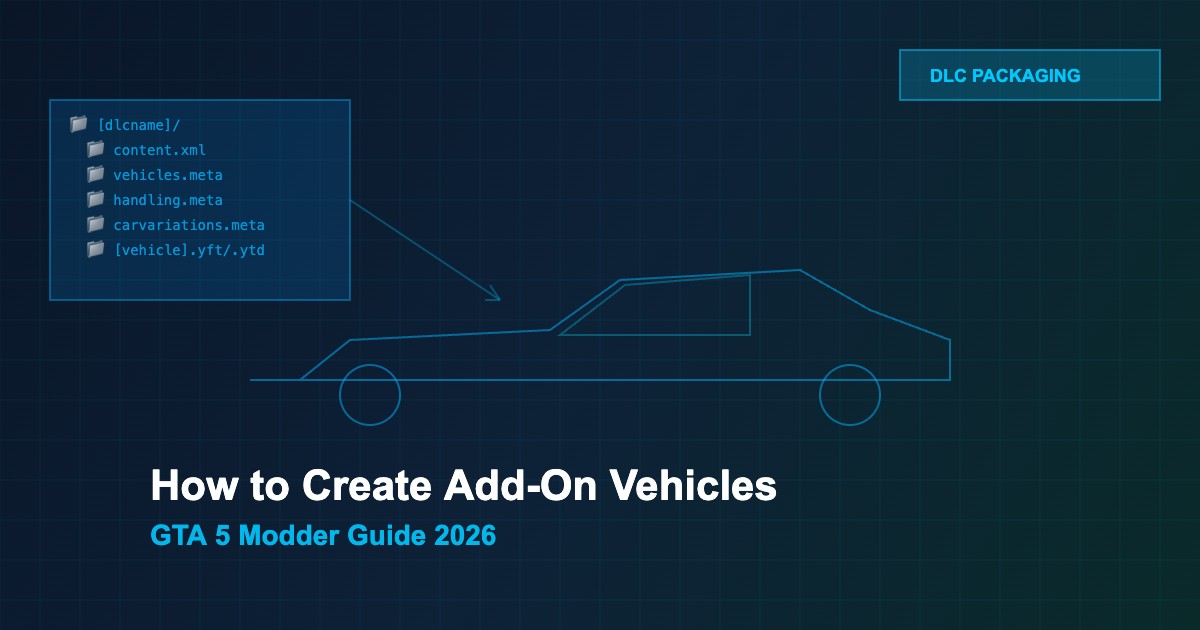
dlcpacks/[dlcname]/
├── content.xml
└── dlc.rpf/
    ├── x64/
    │   ├── levels/gta5/vehicles.rpf/
    │   │   ├── [vehicle].yft    (3D model)
    │   │   └── [vehicle].ytd    (textures)
    │   └── data/
    │       └── handling.meta
    └── common/data/
        ├── vehicles.meta
        ├── carvariations.meta
        └── carcols.meta
Step-by-Step Process
- Prepare the 3D model — Convert your model to GTA 5 format (.yft) using Zmodeler 3. Set up LODs, collision mesh, and vehicle bones
- Create textures — Export/create a .ytd texture dictionary with livery, interior, and detail textures
- Configure vehicles.meta — Define vehicle name, type, class, model info, and dashboard type
- Set up handling.meta — Configure physics: mass, drive force, braking, suspension, and traction
- Edit carvariations.meta — Define color combinations, wheel types, and extras
- Edit carcols.meta — Set available paint colors, livery count, and light settings
- Create content.xml — Register your DLC pack with the game
- Build dlc.rpf — Pack everything into an RPF archive using OpenIV
-
Register in dlclist.xml — Add your DLC path to
update/update.rpf/common/data/dlclist.xml - Test in-game — Spawn using trainer or native call to verify everything works
Key vehicles.meta Settings
| Parameter | Description | Example |
|---|---|---|
modelName |
Model file name (.yft) | mycar |
handlingId |
Links to handling.meta entry | MYCAR |
gameName |
Display name (GXT entry) | MYCAR |
vehicleClass |
In-game category | VC_SUPER |
type |
Vehicle type | VEHICLE_TYPE_CAR |
Common Issues and Fixes
- Vehicle invisible — Check .yft model hierarchy and LOD setup in Zmodeler
- Game crash on spawn — Verify content.xml paths and dlclist.xml entry
- No textures — Ensure .ytd name matches modelName in vehicles.meta
- Handling issues — Double-check handlingId matches between vehicles.meta and handling.meta
- Missing wheels — Set correct wheel type in carvariations.meta
Comments0
Sign in to leave a comment
No comments yet. Be the first to comment!